
Notice: Under construction. Lightweight usage is now available. If you encounter any issues, feel free to report them in the Issues section.
Rev of Keycastow.
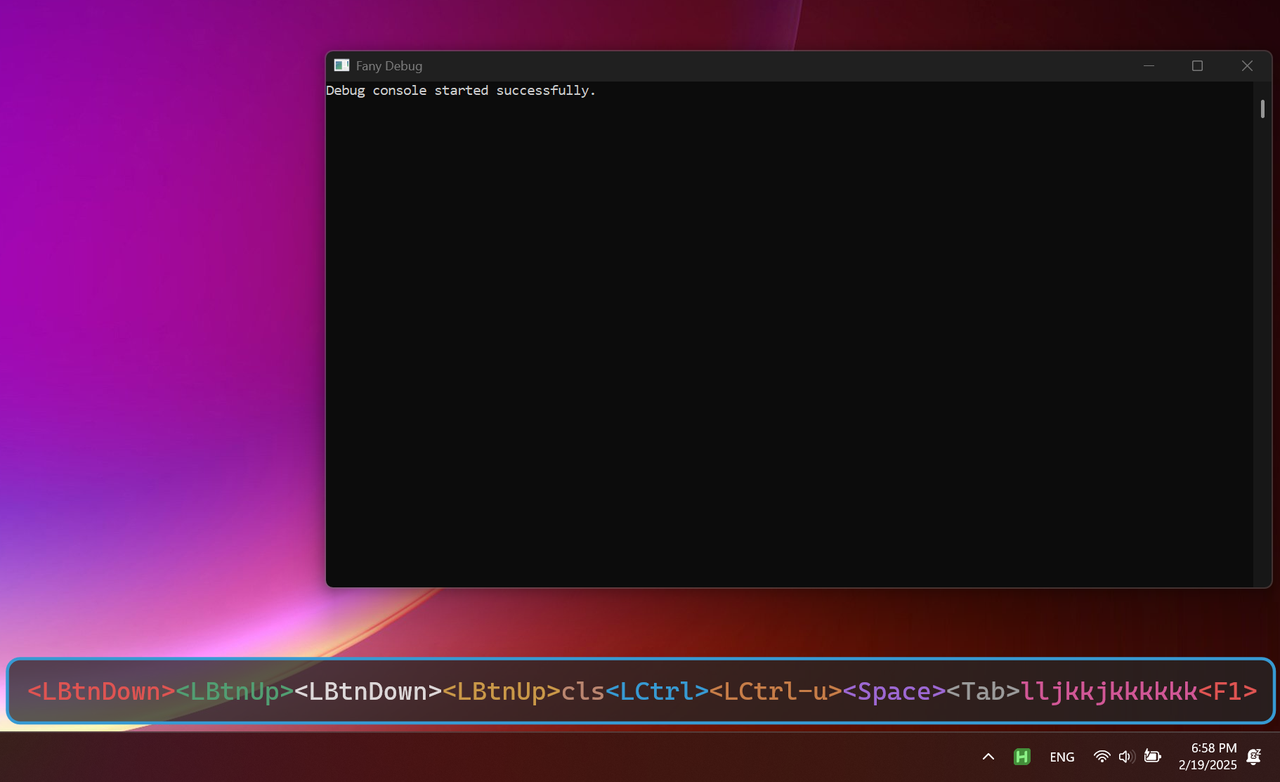
Requirements: Visual Studio 2022 or 2026 with the "Desktop development with C++" workload, CMake 3.25+, Git.
git clone --recursive https://github.com/fanlusky/DirectKeycast.git
cd DirectKeycast
.\scripts\llaunch.ps1
The scripts pick the newest installed Visual Studio, initialize the msimeui submodule if needed, and output to build\bin\<Config>\directkeycast.exe.
| Script | What it does |
|---|---|
scripts\lcompile.ps1 |
Build Debug |
scripts\lcompile-release.ps1 |
Build Release |
scripts\llaunch.ps1 |
Build Debug, then run |
scripts\llaunch-release.ps1 |
Build Release, then run |
scripts\lrun.ps1 [-Configuration Release] |
Run an existing build |
scripts\build.ps1 |
The underlying script: -Configuration Debug|Release, -Preset auto|vs2026|vs2022, -Fresh, -Run |
The wrappers forward extra arguments, e.g. .\scripts\lcompile.ps1 -Preset vs2022 -Fresh. You can also use the presets directly (cmake --preset vs2026 then cmake --build --preset vs2026-release) or open the folder in Visual Studio.
For clangd, generate .clangd with the paths of your checkout:
python .\scripts\prepare_env.pyLeft-click the tray icon (or run directkeycast.exe again) to open the settings window. Right-click the tray icon for the quick menu.
Settings are saved to %LOCALAPPDATA%\DirectKeycast\config.toml; assets\config\config.toml documents every key.
The overlay supports 1–5 rows. Choose 显示排数 on the 浮层 settings page. When a row is full, it moves upward and input continues on a new bottom row; the oldest row disappears when the limit is reached. Shortcuts stay together on the same row. Each row keeps its own idle deadline when it moves upward. After the configured idle delay, that row fades out linearly over 300 ms; typing on another row does not extend its lifetime. The transparent window keeps a fixed capacity while typing to avoid resize flicker. The config key is [overlay].rows (default: 1).
Ctrl + Alt + Shift + F11: show / hide the key overlay.Ctrl + Alt + Shift + F12: exit.
Use the tray menu, press Ctrl + Alt + Shift + F12, or kill it from task manager.