Repository navigation
Quick start
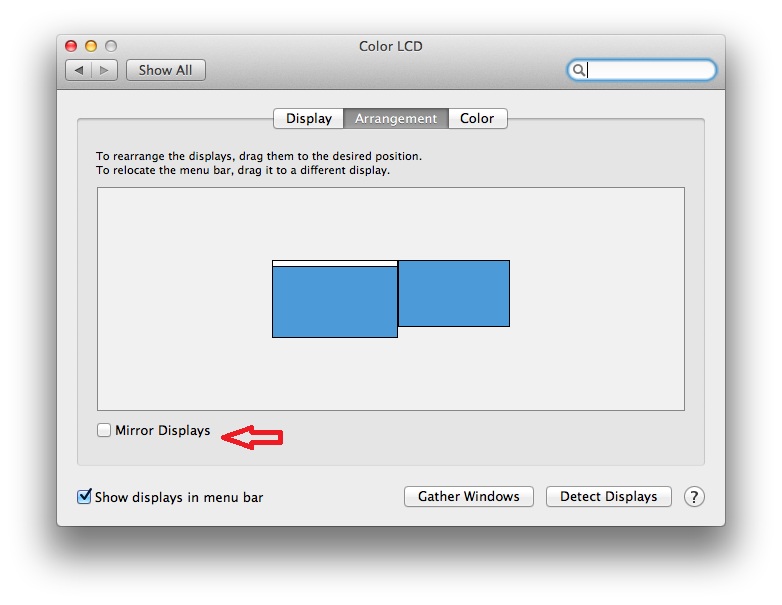
Before you start the software, plug in your projector and extend your display to the right.
To do so, open your display settings, select "Arrangements" and unable "Mirror Displays" as shown in the figure
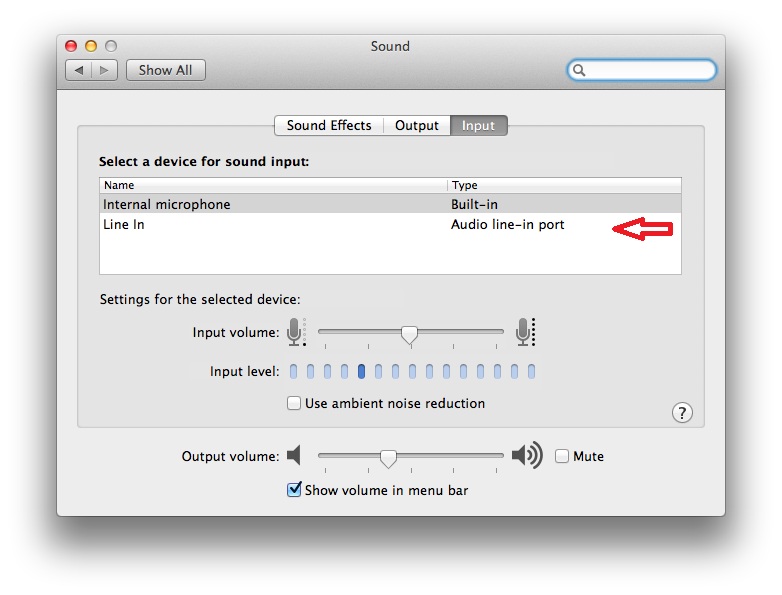
If you want to use a line in instead of the microphon, select it as input source at your sound setting
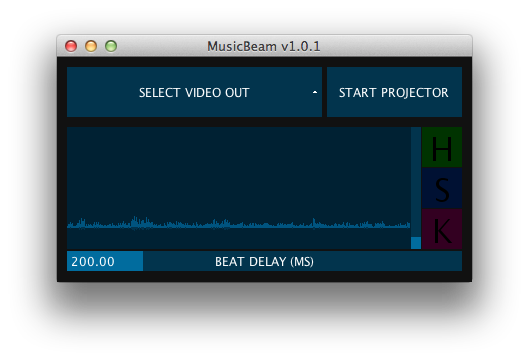
Start the software and select your projector as "video out" and klick on "start projector afterwards
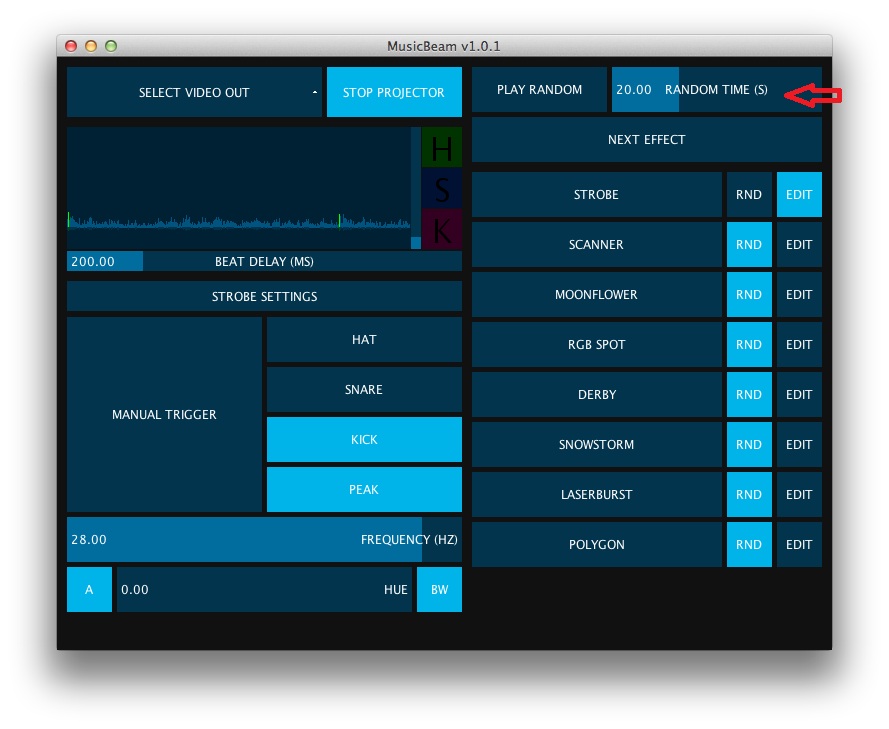
If your using the random mode you can adjust the time each effect is going to be used by changing the time settings as shown in the figure
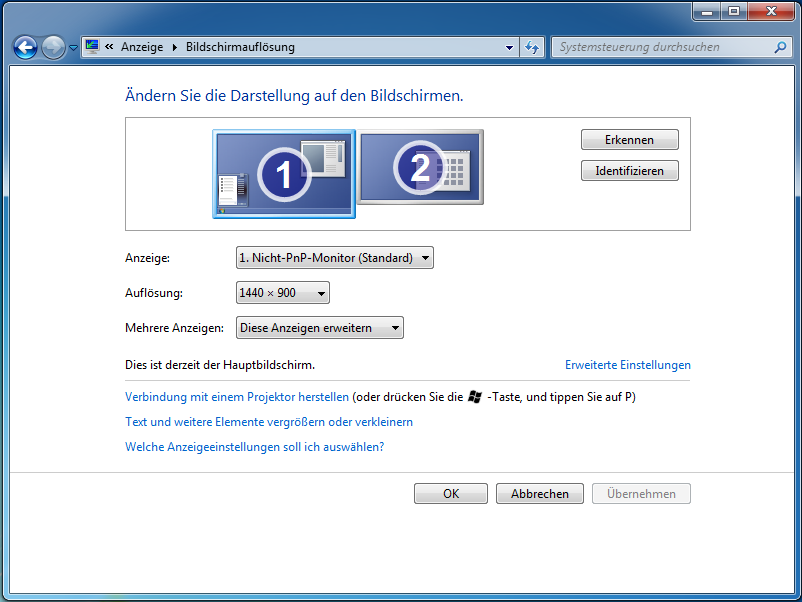
Before you start the software, plug in your projector and extend your display to the right.
To do so, open your display settings and extend the desktop as shown in the figure
If you want to use a line in instead of the microphon, enable the line in as input source at your sound setting
Start the software and select your projector as "video out" and klick on "start projector afterwards