


A TUI-based file explorer for SSH servers, which allows you to browse and manage files on a remote server, edit them in-place, and recursively download directories with parallel directory traversal. It also has the ability to quickly spawn SSH sessions to paths on the remote server.
Dual-licensed under MIT or the UNLICENSE.
brew install jayanaxhf/taps/filesshcargo install --locked filessh- Ensure you have Rust and Cargo installed. You can find installation instructions at rust-lang.org.
- Clone the repository:
git clone https://github.com/your-username/filessh.git cd filessh - Build the project:
The executable will be located at
cargo build --release
target/release/filessh.
- Add support for rsync and scp
- Iron out bugs
filessh [OPTIONS] <HOST> <PATH>- Modify, delete and browse files on a remote server
- Recursively download directories with parallel directory traversal
- Quickly open SSH sessions to directories.
filessh [OPTIONS] [HOST] [PATH]
filessh <COMMAND>

Commands:
  connect              Connect explicitly (same as default command)
  install-man-pages    Install man pages into the system
  install-completions  Generate shell completion scripts

Arguments:
  [HOST]  The remote host to connect to (e.g., 'example.com' or '192.168.1.100')
  [PATH]  Initial directory path to open on the remote host

Options:
  -p, --port <PORT>
          The port number to use for the SSH connection [default: 22]
  -u, --username <USERNAME>
          The username for logging into the remote host
  -k, --private-key <PRIVATE_KEY>
          Path to the private key file for public key authentication
  -o, --openssh-certificate <OPENSSH_CERTIFICATE>
          Optional path to an OpenSSH certificate
  -h, --help
          Print help
  -V, --version
          Print version
./target/release/filessh \
    --username myuser \
    --private-key ~/.ssh/id_rsa \
    example.com \
/home/myuserTo quit, press Ctrl+q.
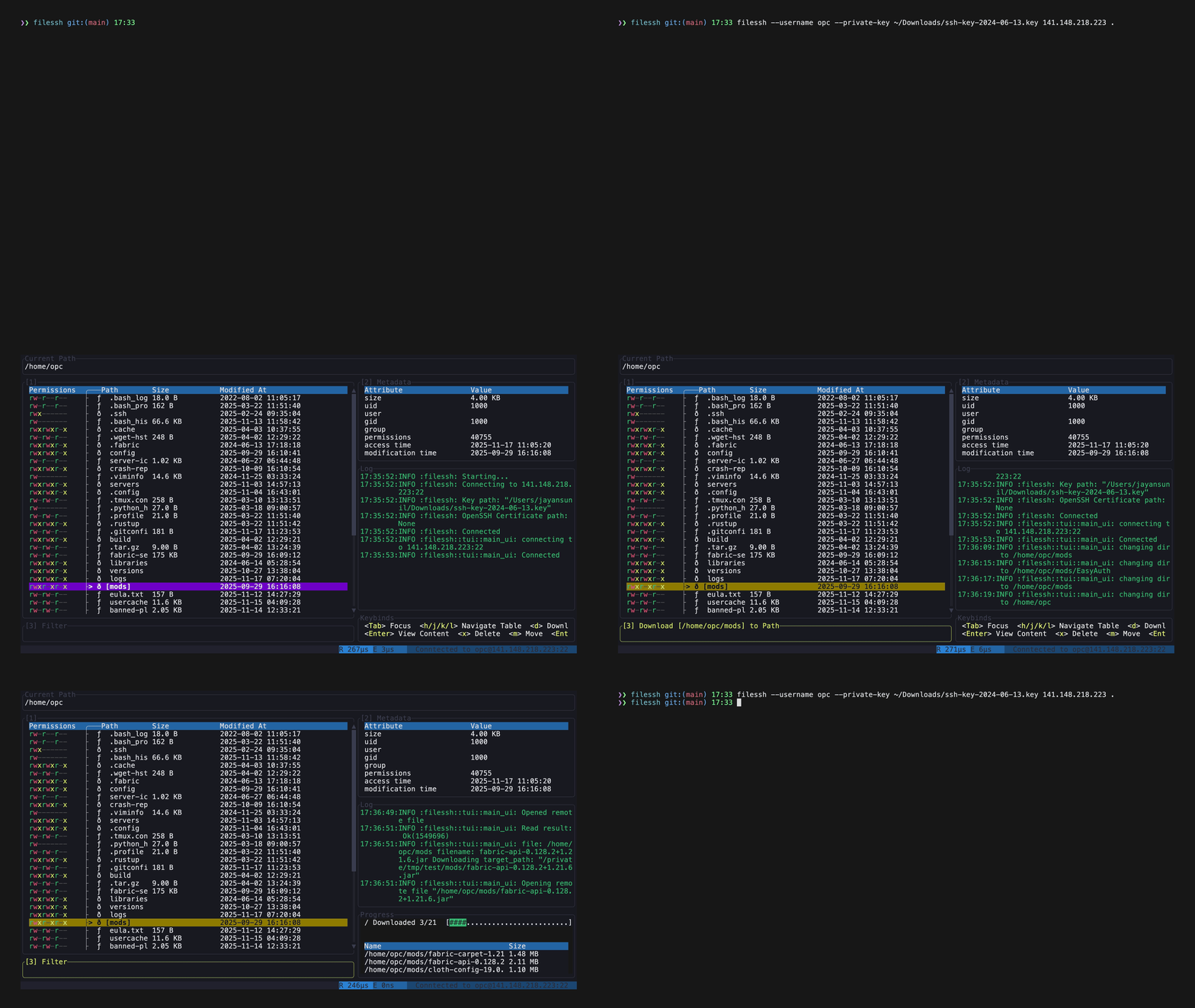
The interface has three panes: the file list, the metadata and file content pane, and the input box that prompts appear in.
| Key | Action |
|---|---|
| Ctrl+q | Quit |
| Tab / Shift+Tab | Move focus between the panes |
| 1 / 2 / 3 | Focus the file list, the content pane, or the input box |
| Esc | Return to the file list, clearing any prompt or filter |
In the file list:
| Key | Action |
|---|---|
| j / k, ↓ / ↑ | Move the selection |
| l / → | Enter the selected directory |
| h / ← | Go to the parent directory |
| Enter | Show the selected file's contents in the content pane |
| e | Edit the file in $EDITOR, after Enter has loaded it |
| d | Download the selection, prompting for a local path |
| f | Filter the list by name, as you type |
| m | Rename or move the selection |
| x | Delete the selection, confirming with y |
| n f | Create a file |
| n d | Create a directory |
| . | Hide dotfiles, which are shown by default |
| Ctrl+o | Open an SSH session in the current directory |
At a prompt, Enter accepts and Esc cancels.