🌍 Sprachen: 🇺🇸 English | 🇩🇪 Deutsch
A custom Nextcloud app with a clean dark UI, a persistent top player, custom folder organization, and direct integration with radio-browser.info. ⚡





🌐 Language note: The app interface is currently German only. An English translation / in-app language switch is in the works.
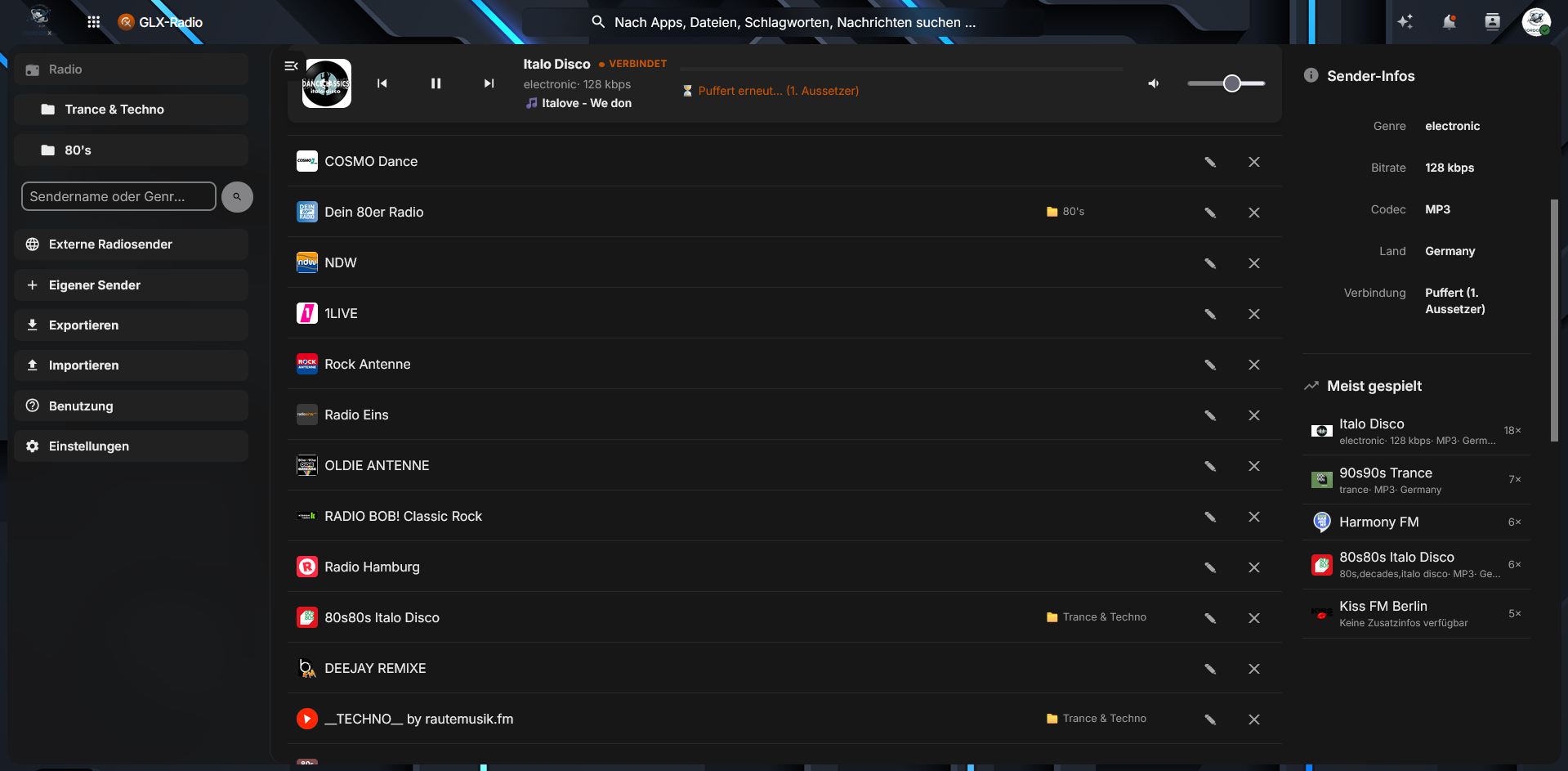
The main interface features a persistent top player that keeps playing even when you navigate through different views — plus custom folder organization in the sidebar, live stream status, detailed station info, and your most-played statistics. 🎶
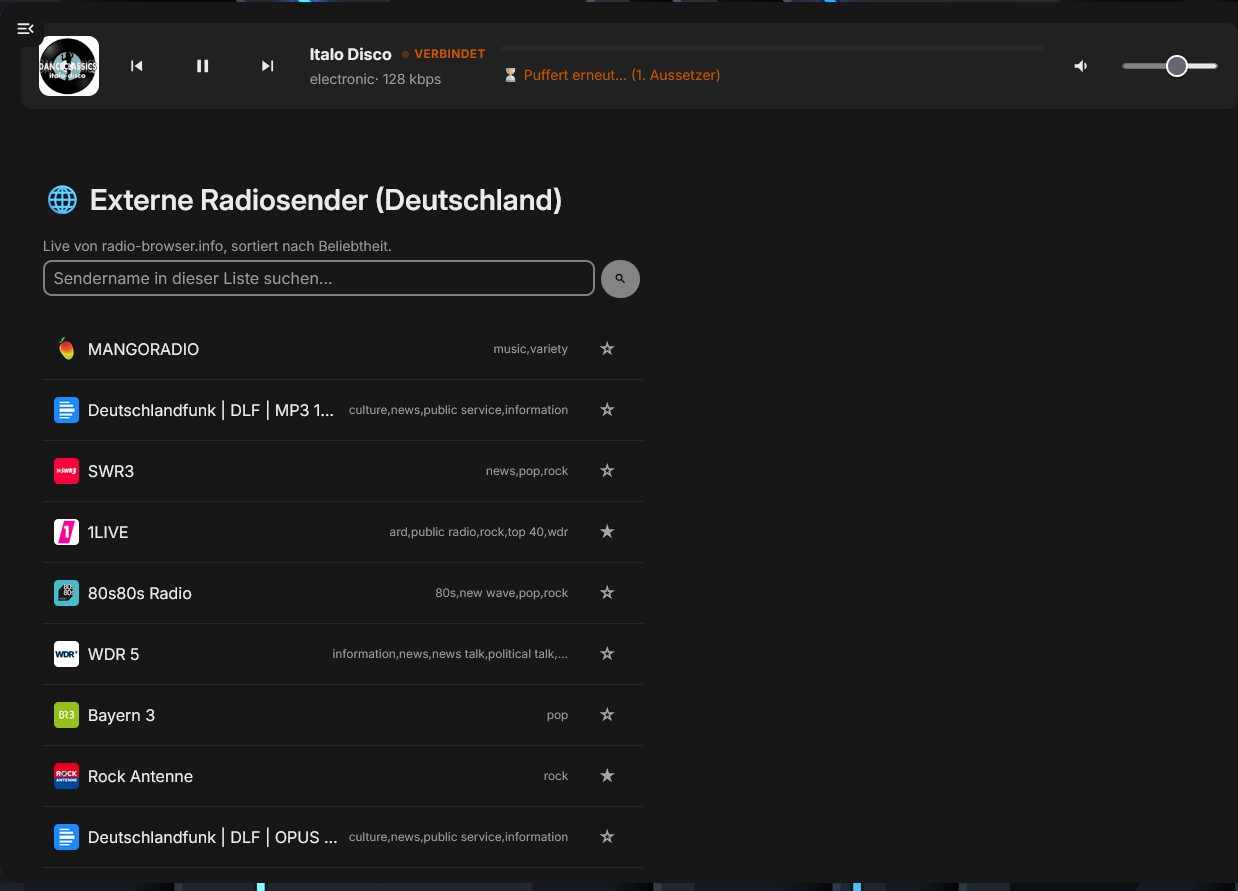
Search and explore popular external radio stations live from radio-browser.info (sorted by popularity) and add them straight to your favorites with a single click. 🔍➕
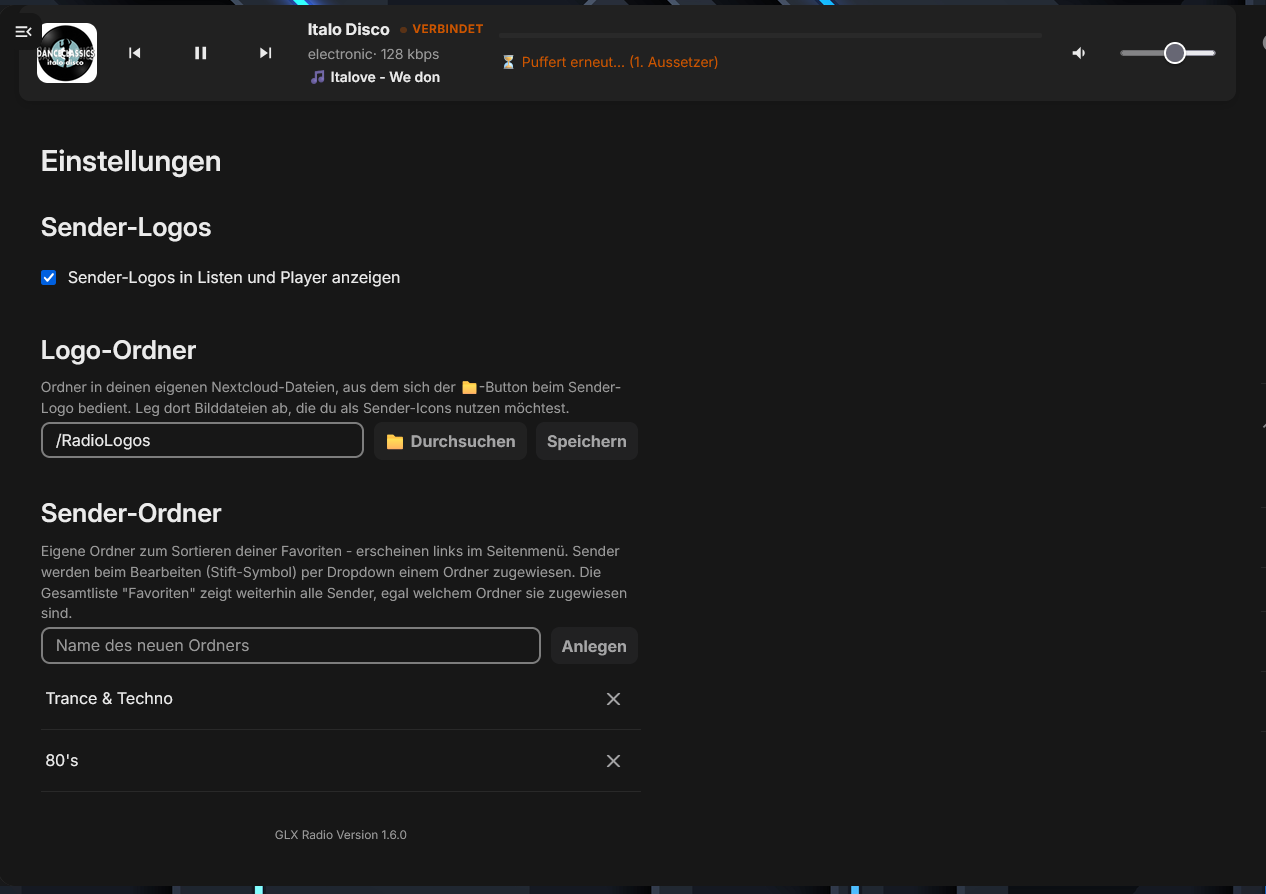
Configure station logos, link your custom Nextcloud storage folder for icons (e.g., /RadioLogos), create custom sorting folders for your sidebar, and manage app configuration. ⚙️
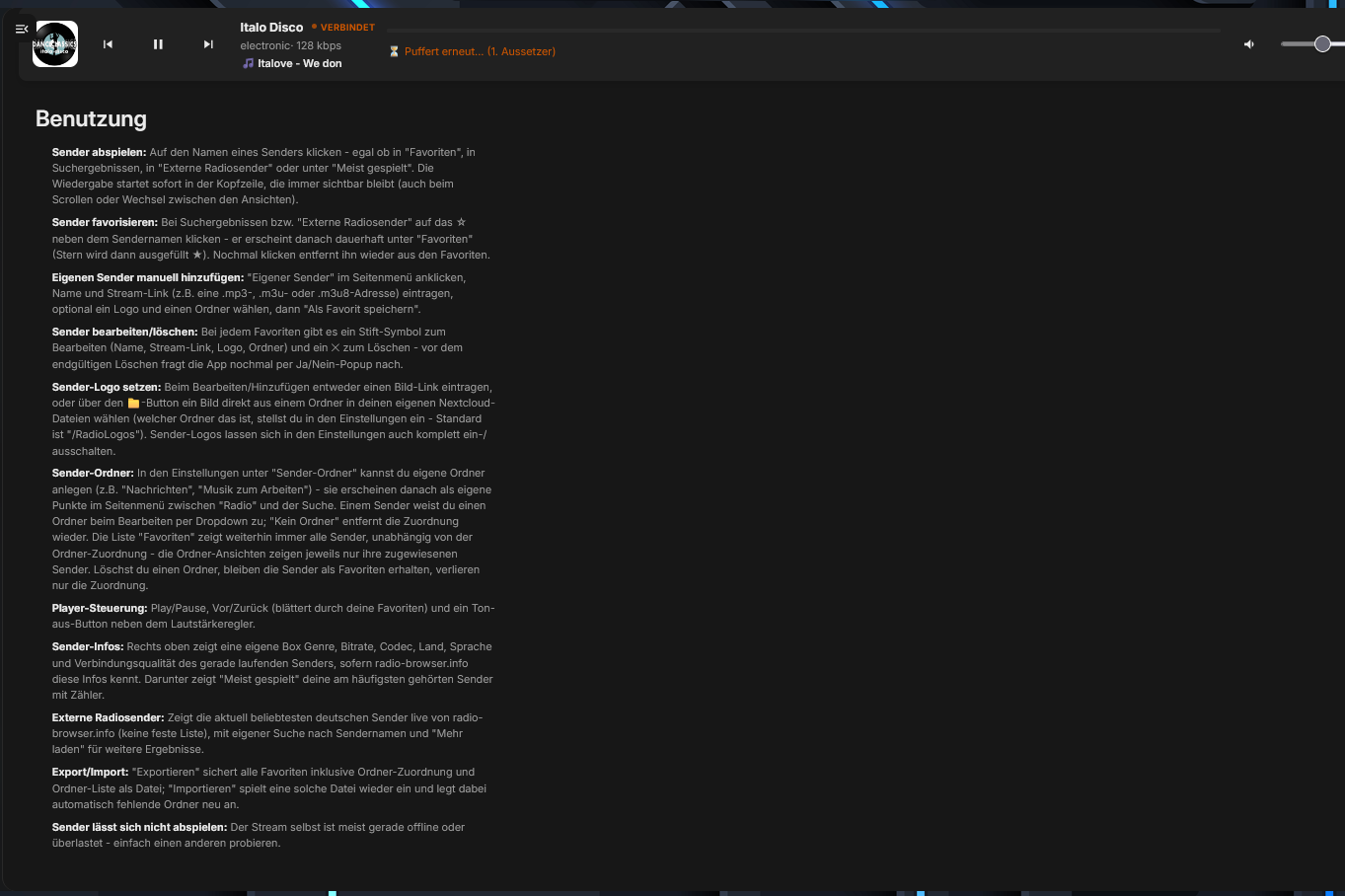
Comprehensive built-in instructions covering everything — playing streams, adding custom stations manually, editing/deleting favorites, managing folders, and export/import options. 📖
▶️ Persistent Top Player: Play, pause, skip through favorites, control volume, and view real-time track info seamlessly across views.- 🌐 External Radio Integration: Live search via
radio-browser.infoto discover thousands of stations. - 🗂️ Custom Folders & Sidebar: Organize your favorites into custom categories (e.g., Trance & Techno, 80's).
- 🖼️ Logo Management: Assign custom icons via URL or pick image files directly from your Nextcloud storage.
- 💾 Export & Import: Securely back up or restore your station list and folder structure as a file.
- 📊 Most-Played Statistics: Keep track of your favorite and most frequently listened stations.
- ☁️ Nextcloud (compatible with current major versions)
- 🐘 PHP 8.0 or higher
If you want to install this app manually as a custom app (custom_apps), follow these instructions.
Ensure that your config/config.php is configured to allow custom apps.
If you are not comfortable using text editors like nano inside the SSH terminal,
you can easily inject this configuration automatically using the following SSH command:
sudo -u www-data php /var/www/nextcloud/occ config:system:set apps_paths 1 path --value="/var/www/nextcloud/custom_apps" &&
sudo -u www-data php /var/www/nextcloud/occ config:system:set apps_paths 1 url --value="/custom_apps" &&
sudo -u www-data php /var/www/nextcloud/occ config:system:set apps_paths 1 writable --value=true --type=boolean
For information – this is how the structure will look inside your config/config.php afterwards:
'apps_paths' => array (
   0 => array (
     'path' => '/var/www/nextcloud/apps',
     'url' => '/apps',
     'writable' => false,
   ),
   1 => array (
     'path' => '/var/www/nextcloud/custom_apps',
     'url' => '/custom_apps',
     'writable' => true,
   ),
),- Connect to your server via SFTP.
- Navigate to the
/var/www/nextcloud/directory. If thecustom_appsfolder does not exist yet, - please create it inside this directory exactly as written.
- Upload the ZIP file (e.g.,
glxradio-app_2.1.3.zip– the latest release from GitHub or the homepage) - into the
custom_appsfolder. - For future versions, pay attention to the version number in the filename (e.g.,
glxradio-app_2.1.4.zip). - Important: For the app to function properly, the extracted folder name must always remain
glxradio. Execute the following chained command via SSH. This enables maintenance mode, checks the version, removes old remains, extracts the app cleanly into the correct directory, fixes permissions, restarts PHP-FPM, enables the app, and turns maintenance mode off:
sudo -u www-data php /var/www/nextcloud/occ maintenance:mode --on && cd /var/www/nextcloud/custom_apps && unzip -p
glxradio-app_2.1.3.zip glxradio/appinfo/info.xml | grep version && sudo -u www-data php /var/www/nextcloud/occ app:disable
glxradio && rm -rf /var/www/nextcloud/custom_apps/glxradio && unzip -o glxradio-app_2.1.3.zip -d /var/www/nextcloud/custom_apps/ &&
chown -R www-data:www-data /var/www/nextcloud/custom_apps/glxradio && systemctl restart php8.4-fpm &&
sudo -u www-data php /var/www/nextcloud/occ app:enable glxradio && sudo -u www-data php /var/www/nextcloud/occ maintenance:mode --off
Afterwards, you should see a success message in your terminal window:
glxradio enabled- Finally, completely reload your Nextcloud page in the browser using the shortcut Ctrl + F5. The GLX Radio icon will then appear in your Nextcloud menu.
To update the app to a newer version, upload the new ZIP file (e.g., glxradio-app_2.1.4.zip)
per SFTP into the custom_apps folder and run this chained
command in one single go (simply replace glxradio-app_2.1.3.zip with e.g.: glxradio-app_2.1.4.zip in the command with your new filename):
sudo -u www-data php /var/www/nextcloud/occ maintenance:mode --on && cd /var/www/nextcloud/custom_apps && unzip -p
glxradio-app_2.1.4.zip glxradio/appinfo/info.xml | grep version && sudo -u www-data php /var/www/nextcloud/occ
app:disable glxradio && rm -rf /var/www/nextcloud/custom_apps/glxradio && unzip -o glxradio-app_2.1.4.zip -d
/var/www/nextcloud/custom_apps/ && chown -R www-data:www-data /var/www/nextcloud/custom_apps/glxradio &&
systemctl restart php8.4-fpm && sudo -u www-data php /var/www/nextcloud/occ app:enable glxradio &&
sudo -u www-data php /var/www/nextcloud/occ maintenance:mode --off
Tip: After a successful installation, you can delete the uploaded ZIP files inside the custom_apps folder
via SFTP to avoid accumulation of data trash. The extracted and installed app is located and ready to use inside the folder /var/www/nextcloud/custom_apps/glxradio.
👉 GLX-Radio on gordonx.de — description, screenshots and download.
This project is licensed under the AGPL-3.0-or-later license. See the LICENSE file for details.
Made with ❤️ by Dreamdancer100